How to ensure data quality in your Scrapy web scraping projects using Spidermon and Claude Code
Your spider ran to completion. No exceptions. Exit code 0. But when you opened the output, half the price fields were empty, some URLs were relative paths instead of absolute ones, and the item count was 40% lower than expected - silently.
This is the data quality problem in web scraping, and it's more common than most developers expect. Scrapy does a great job of fetching and parsing pages, but it has no built-in way to tell you when the data coming out of that process is wrong. That's a separate concern, and one that Spidermon was built to handle.
What does "good data" actually mean?
Before we set up any monitoring, it helps to define what we're trying to protect. In the context of scraped items, good data has four dimensions:
- Completeness — all expected fields are present and non-empty
- Correctness — values match the expected type and format (a price is a number, a URL starts with https://)
- Consistency — all items have the same structure across the entire crawl
- Volume — the number of scraped items is within a reasonable range
Most spider bugs violate one or more of these. Spidermon gives you monitors for each.
Introducing Spidermon
Spidermon is an open-source monitoring framework for Scrapy. You attach it to your spider, define what "success" looks like, and it automatically checks your crawl results after the spider closes, flagging anything that doesn't meet your standards.
Out of the box, it gives you:
- Item validation : validate every scraped item against your JSON schema.
- Item count monitoring : fail the run if fewer than desired-set items were scraped.
- Field coverage : check that critical fields are populated across all items.
- Finish reason monitoring : catch spiders that closed abnormally (connection timeout, ban, etc.).
- Notifications : alert via Slack, Telegram, email, or Sentry when a monitor fails.
- HTML reports : a visual pass/fail summary saved after each run.
Install it with:
1pip install spidermon[validation]
2# or with uv
3uv pip install spidermon jsonschemaSetting up spidermon manually
Let's walk through a complete setup for a product spider called products in a project called store_scraper. Each item it yields looks like this:
1{"name": "Wireless Keyboard", "price": 49.99, "url": "https://store.example.com/keyboards/wireless"}1. Register the extension
Add Spidermon to your settings.py. The extension class name is Spidermon, not SpiderMonitor, which is a common mistake.
1# settings.py
2EXTENSIONS = {
3    "spidermon.contrib.scrapy.extensions.Spidermon": 500,
4}
5
6SPIDERMON_SPIDER_CLOSE_MONITORS = (
7    "store_scraper.monitors.SpiderCloseMonitorSuite",
8)2. Define an item schema
Create a JSON schema file at store_scraper/schemas/product_schema.json. This schema describes what a valid item looks like:
1{
2  "$schema": "http://json-schema.org/draft-07/schema",
3  "type": "object",
4  "properties": {
5    "name":  { "type": "string", "minLength": 1 },
6    "price": { "type": "number", "exclusiveMinimum": 0 },
7    "url":   { "type": "string", "pattern": "^https?://" }
8  },
9  "required": ["name", "price", "url"]
10}Each field constraint is deliberate: minLength: 1 catches empty strings, exclusiveMinimum: 0 rejects zero-price items, and the URL pattern catches relative paths before they hit your database.
Then wire the schema and validation pipeline into settings:
1# settings.py
2from store_scraper.items import ProductItem
3
4ITEM_PIPELINES = {
5    "spidermon.contrib.scrapy.pipelines.ItemValidationPipeline": 800,
6}
7
8SPIDERMON_VALIDATION_SCHEMAS = {
9    ProductItem: "store_scraper/schemas/product_schema.json",
10}
11
12SPIDERMON_MAX_ITEM_VALIDATION_ERRORS = 50Always include SPIDERMON_MAX_ITEM_VALIDATION_ERRORS, without it, Spidermon raises an error if any item fails validation.
3. Write your monitor suite
Create store_scraper/monitors.py:
1from spidermon.contrib.scrapy.monitors import (
2    FieldCoverageMonitor,
3    FinishReasonMonitor,
4    ItemCountMonitor,
5    ItemValidationMonitor,
6)
7from spidermon.core.suites import MonitorSuite
8
9
10class SpiderCloseMonitorSuite(MonitorSuite):
11    monitors = [
12        ItemCountMonitor,
13        FinishReasonMonitor,
14        FieldCoverageMonitor,
15        ItemValidationMonitor,
16 ]Back in settings.py, configure the thresholds:
1SPIDERMON_MIN_ITEMS = 100          # ItemCountMonitor threshold
2SPIDERMON_EXPECTED_FINISH_REASONS = ["finished"]
3SPIDERMON_FIELD_COVERAGE_RULES = {
4    "dict/name": 1.0,    # 100% of items must have a name
5    "dict/price": 1.0,
6    "dict/url": 1.0,
7}4. Run It
1scrapy crawl productsAfter the spider closes, you'll see Spidermon output in the log:
1[Spidermon] PASSED ItemCountMonitor
2[Spidermon] PASSED FinishReasonMonitor
3[Spidermon] FAILED FieldCoverageMonitor
4  - dict/price coverage: 0.72 (required: 1.0)
5[Spidermon] PASSED ItemValidationMonitorThat FieldCoverageMonitor failure is Spidermon telling you that 28% of your items came back without a price, something that would have been invisible without monitoring.
Faster setup using Claude Spidermon-assistant Skill
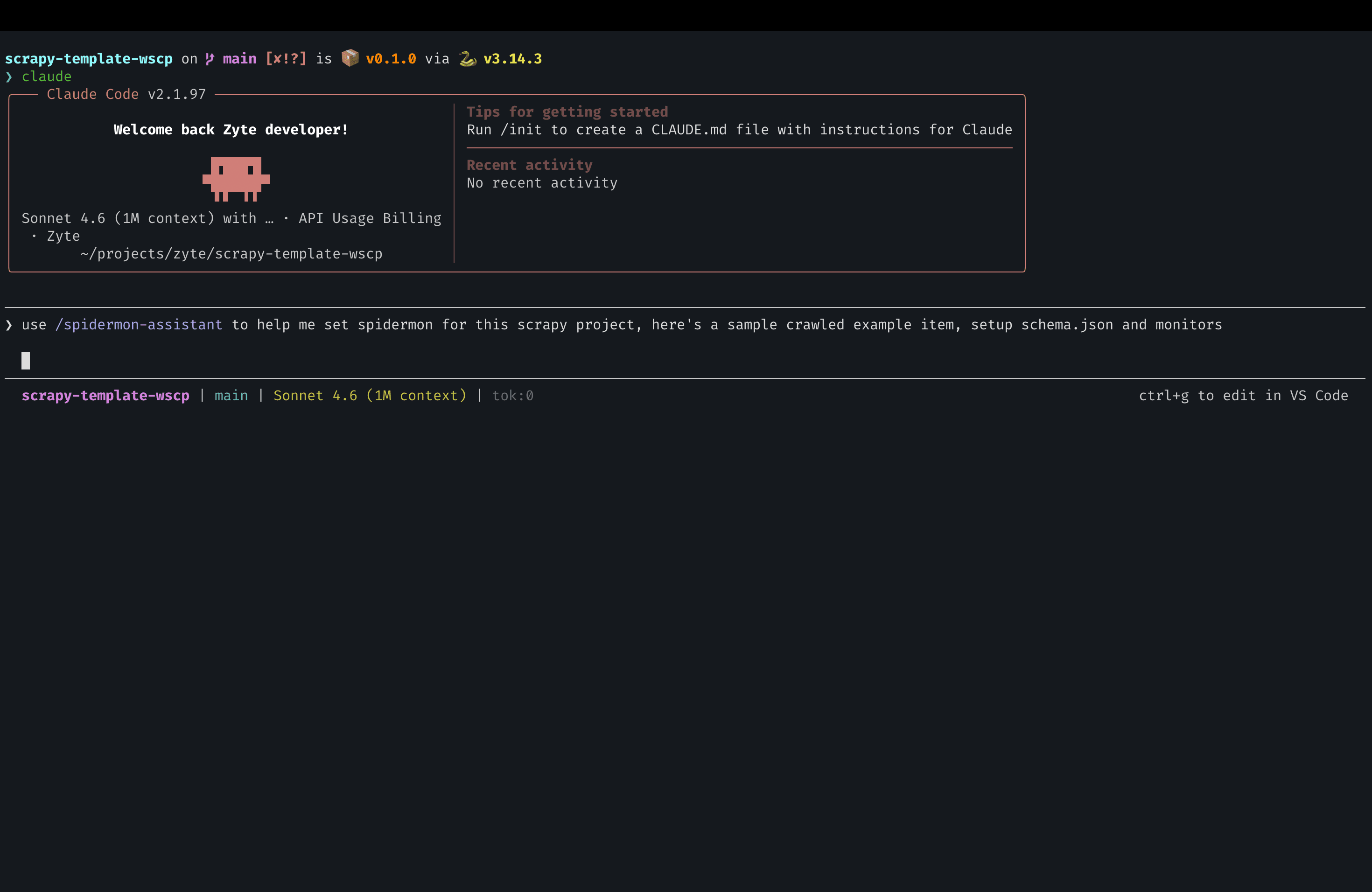
Writing all of the above from scratch means reading docs, finding the correct class names, and wiring everything together manually. The spidermon-assistant Claude skill does it for you — interactively, from your actual project files, with zero placeholders in the output.
Here's the workflow:
- Paste a sample item from a successful crawl, and prompt Claude code:
1
/spidermon-assistant Here's an item from my spider:
2{"name": "Wireless Keyboard", "price": "49.99", "url": "https://store.example.com/keyboards/wireless"}
3Answer a few questions : the skill automatically scans your project name, spider name, whether you’re using scrapy-poet, if so pageObject, item type (plain dict, dataclass, attrs, or Scrapy Item). It will ask for expected item count, and whether you want HTML reports. Answer it and it will set it all up for you.
Get production-ready files : schemas/product_schema.json, monitors.py, and the settings.py additions, all using your actual project names. Nothing to find-and-replace.
The skill notices things you might miss: in the example above, price is a string "49.99" rather than a number. It flags that and adds a comment suggesting you convert it in the spider's item pipeline before validation runs.
Beyond initial setup, the skill has four more workflows you can use any time:
- Config Advisor : paste your existing settings.py and monitors.py to get a gap analysis
- Expression Builder : turn plain English rules into expression monitors ("fail if error rate exceeds 1%")
- Troubleshooter : paste Spidermon log output and get a root-cause diagnosis
- Schema Generator : generate or update schemas as your items evolve
The skill runs inside Claude code, so it can read your project structure directly and write files for you. For a scrapy-poet project with under 50 items, the full setup cost around $0.60 in API usage.
You can find it here: github.com/apscrapes/claude-spidermon-assistant
Note: This is not an official Zyte tool. Back up your project before running it.
Going further: notifications and reports
Once your monitors are in place, the next natural step is getting notified when they fail — not just in the logs.
Slack alerts are a few lines in settings.py:
1from spidermon.contrib.actions.slack.notifiers import SendSlackMessage
2
3class SpiderCloseMonitorSuite(MonitorSuite):
4    monitors = [...]
5    monitors_failed_actions = [SendSlackMessage]
6
7SPIDERMON_SLACK_SENDER_TOKEN = "xoxb-your-token"
8SPIDERMON_SLACK_SENDER_CHANNEL = "#scraping-alerts"Spidermon also supports Telegram, Discord, email via Amazon SES, and Sentry.
HTML reports give you a visual summary of every run, which monitors passed, spider stats, and a breakdown of validation errors by field. Enable them by adding CreateFileReport to your monitor suite's actions (requires jinja2). The skill sets this up automatically if you opt in during the elicitation step.
Where to go from here :
- Spidermon documentation : complete reference for all monitors, actions, and settings
- spidermon-assistant skill : the Claude skill used in this post
- Scrapy documentation : pipelines, item types, stats